
Your first work order
in under 5 minutes.
The no hassle maintenance and work-order software for small landlords.
Live in 5 minutes. Create your first work order before your coffee’s cold.
No App Store, no downloads. Everything runs in the browser as an installable web app.
Passwordless for everyone. Tenants and contractors get a magic link, not another password to forget.
Built for three people
Everyone in the loop gets exactly what they need — nothing more.
Landlords
Stop chasing contractors and losing track of requests. See every work order in one place, from your phone — with an email the moment status changes.
Tenants
Report a problem in seconds. Tap a link, describe the issue, done — no app, no account.
Contractors
A dead-simple mobile job queue. Get the work, mark it done, get paid — no login hassle.
How it works
Three steps. That’s really it.
Add your properties and contractors
Set up your property portfolio and contractor directory in minutes. No complicated onboarding.
Receive maintenance requests with photos
Tenants submit requests directly. You get all the details — including photos — in one place.
Assign, track, and close work orders
Convert requests to work orders, assign contractors, and track progress to completion.
See it in action
Clean, focused screens built for every person in the loop.
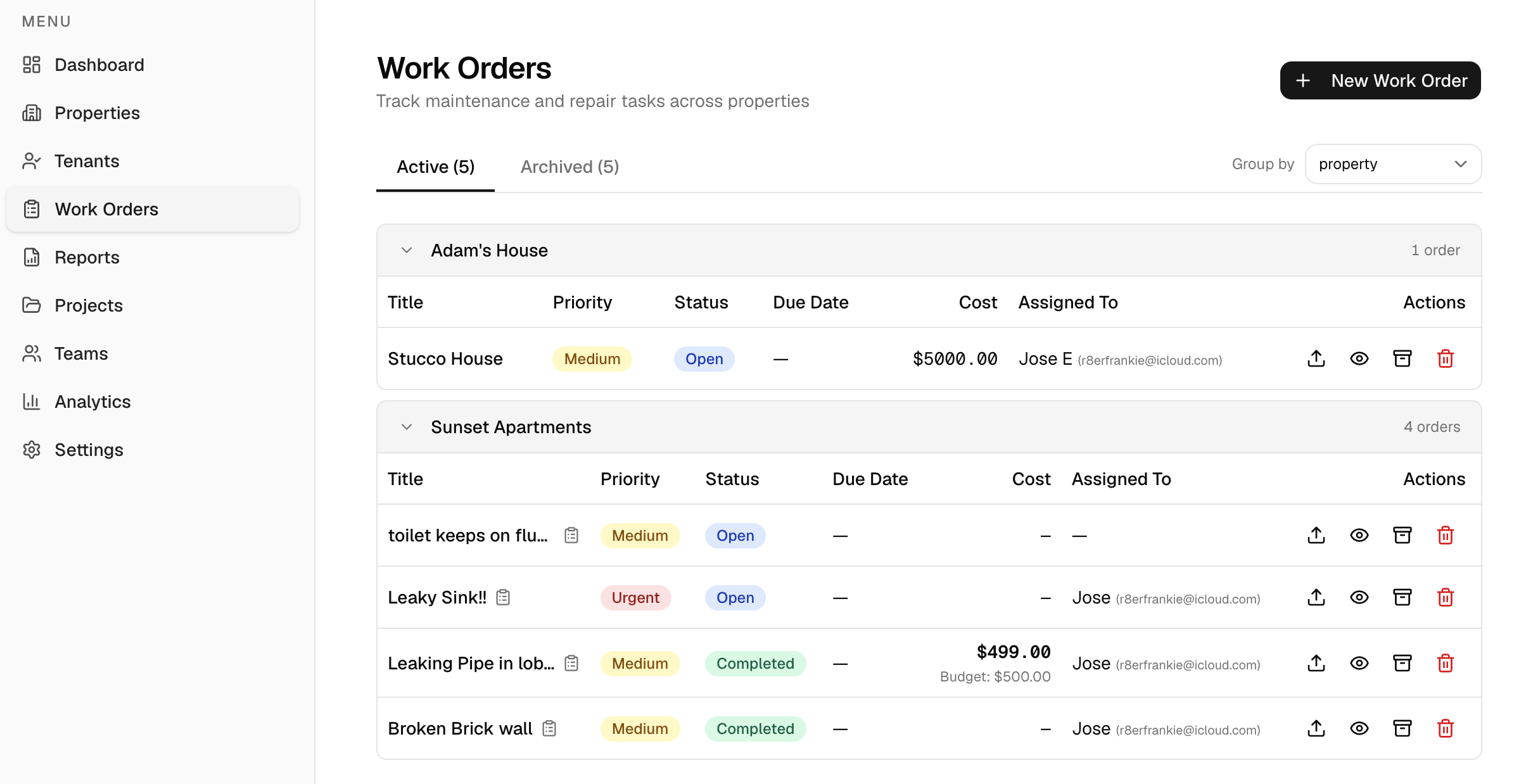
Work order management
Track every job across all your properties in one place.
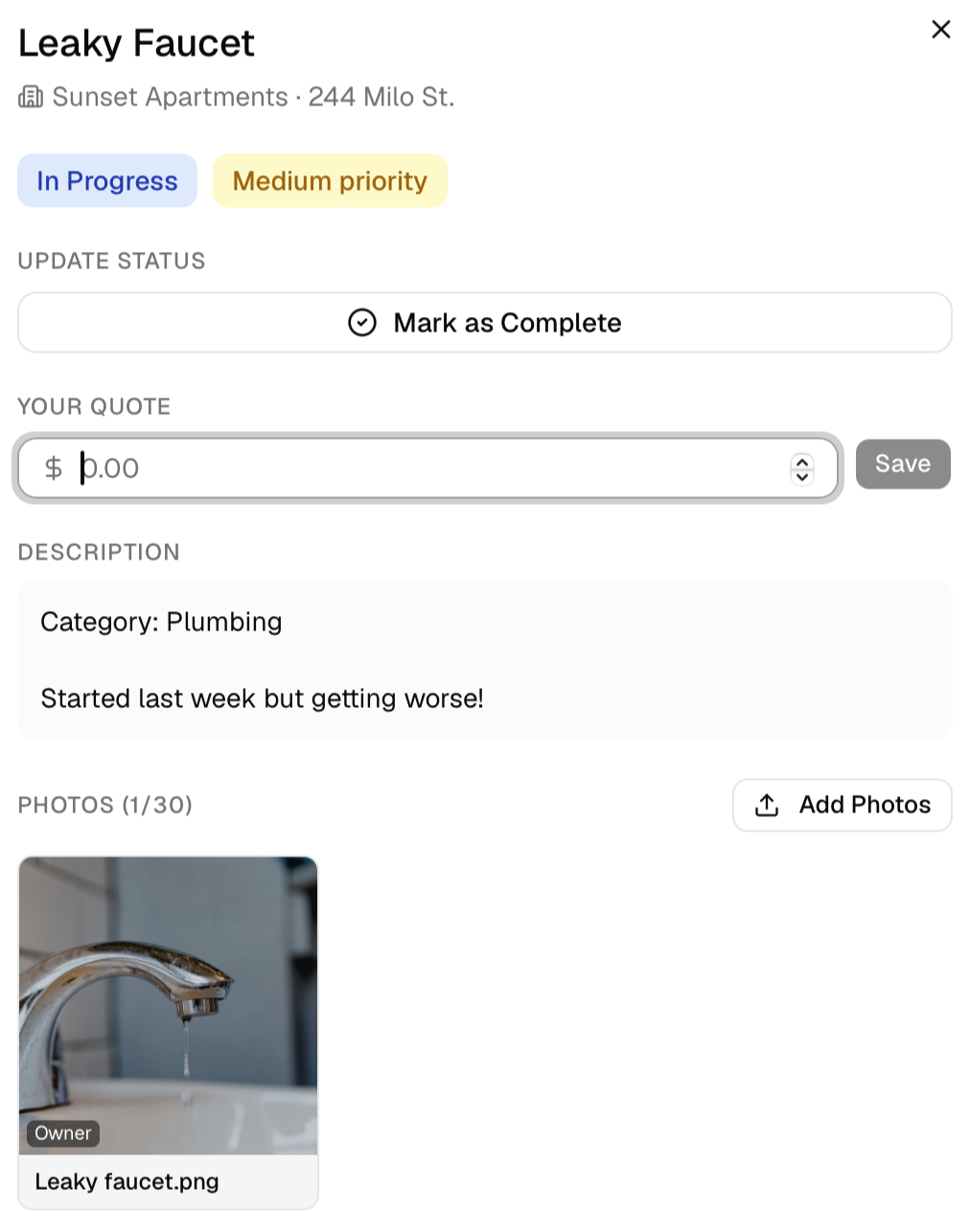
Jobs on the go
Accept and manage work orders from anywhere.
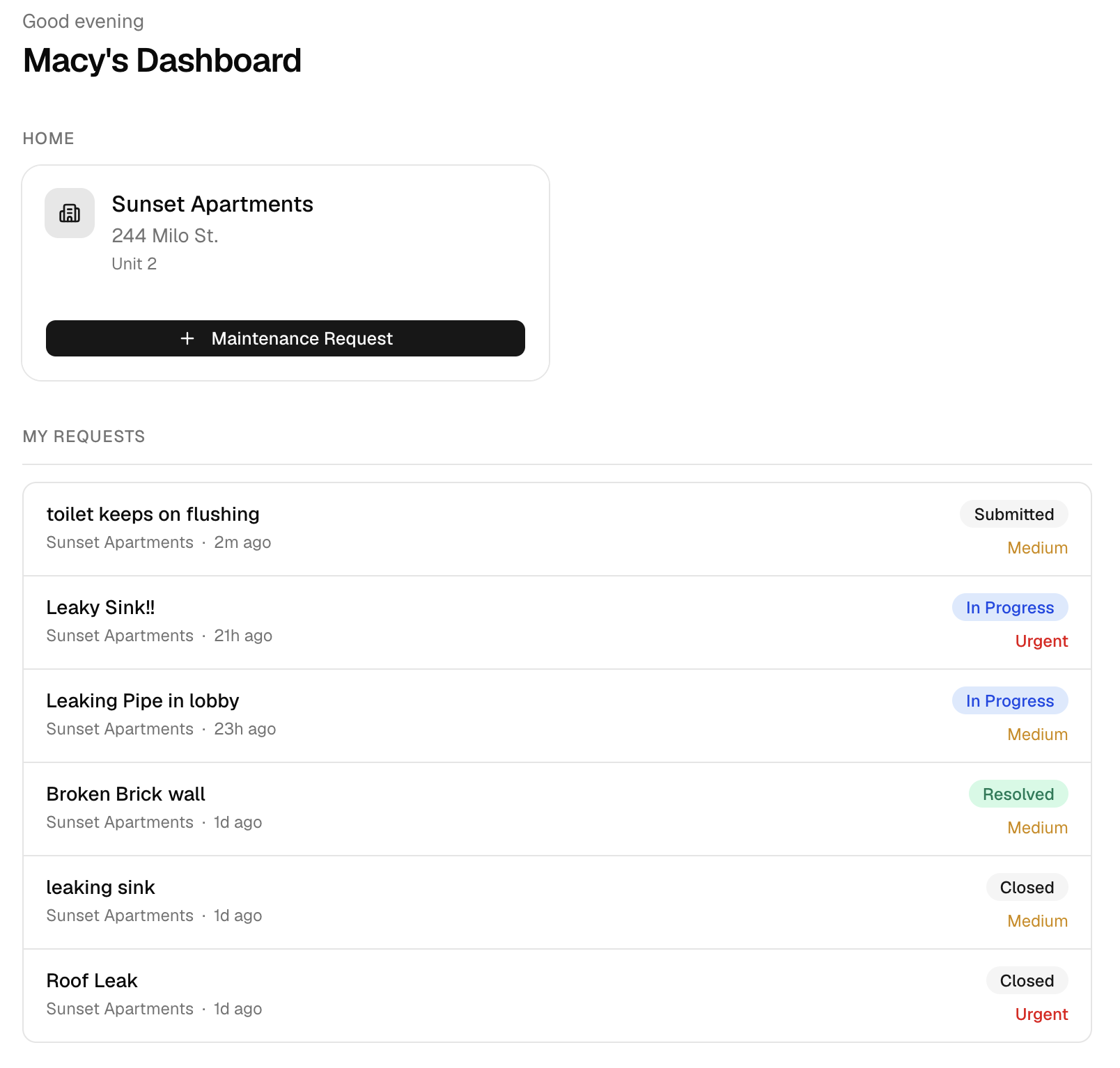
Maintenance tracking
Submit requests and track progress without phone calls.
Works on every device
No App Store. No download. Install directly from your browser in seconds.
- 1Open gonestora.app in Safari (must be Safari, not Chrome)
- 2Tap the Share button (the box with an arrow pointing up) at the bottom of the screen
- 3Scroll down in the share sheet and tap "Add to Home Screen"
- 4Tap Add in the top-right corner — Nestora appears on your home screen
- 1Open gonestora.app in Chrome (or Firefox / Samsung Browser)
- 2Tap the three-dot menu (⋮) in the top-right corner
- 3Tap "Add to Home Screen" or "Install App" — the wording varies by browser
- 4Tap Add or Install in the prompt — Nestora appears on your home screen
- 1Open gonestora.app in Google Chrome
- 2Option A — Menu: Click the three-dot menu (⋮) in the top-right → hover over "Cast, Save and Share" → click "Install Nestora"
- 3Option B — Address bar: Look for a small computer icon (⊕) on the right side of the address bar and click it
- 4Click Install in the confirmation dialog — Nestora opens as a standalone app
- 1Open gonestora.app in Microsoft Edge
- 2Option A — Address bar: Look for the "App available" icon (a monitor with a down arrow) on the right side of the address bar and click it
- 3Option B — Menu: Click the three-dot menu (⋯) → click "Apps" → click "Install this site as an app"
- 4Click Install — Nestora is added to your Start Menu or Applications folder
- 1Open gonestora.app in Safari on your Mac
- 2Click the File menu in the top menu bar
- 3Click "Add to Dock…"
- 4Click Add — Nestora appears in your Dock and Launchpad

Built by landlords, for landlords.
Already have an account? Sign in here